How to install or update a custom creative template?
Before you install or update
Please ensure that you have the required access levels in Google Ad Manager and the necessary tools. You can review the full requirements here.
Installation methods
Each template offers two installation methods:
- Method A: Download and install the template file with default settings by importing it into Google Ad Manager (recommended and easiest).
- Method B: Customize appearance and default values, then download and install the customized template file by importing it into Google Ad Manager.
Method A: download and install
- Download the custom creative template from the App. The file will be import-ready and have the ".dfp-template" extension.
- Sign in to your Google Ad Manager account.
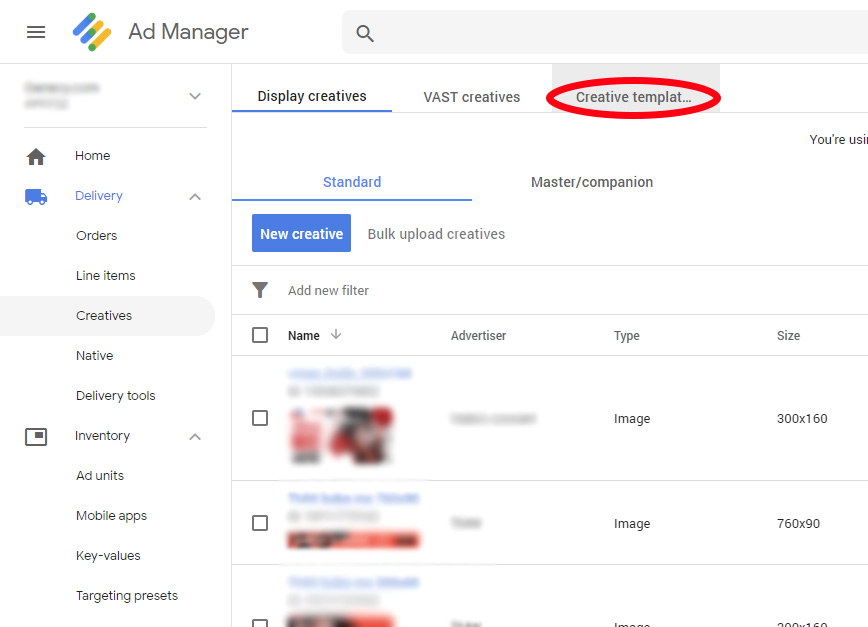
- Click on Delivery → Creatives in the left-hand menu.

- Open the Creative templates tab.

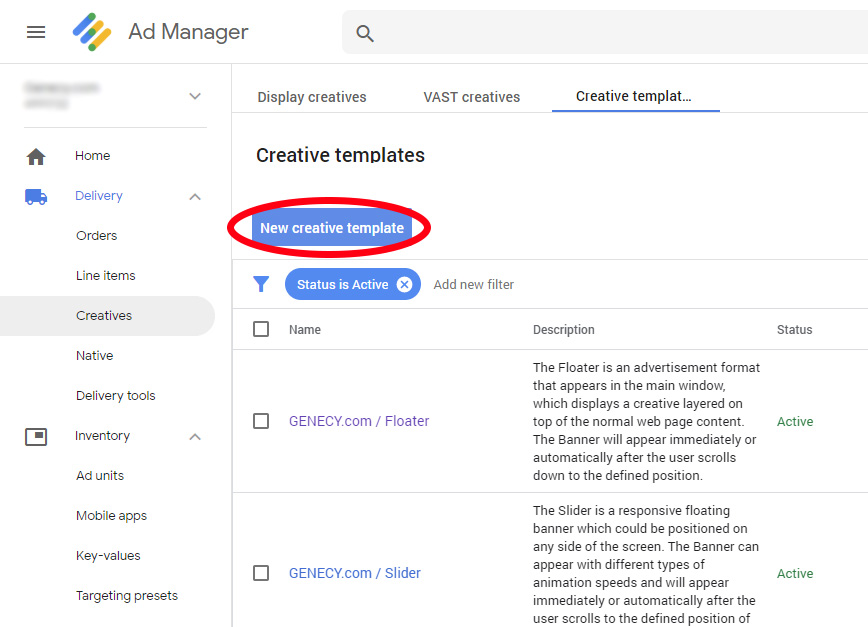
- Click the New creative template button to install a new template, or select an existing installed template if you want to update it.

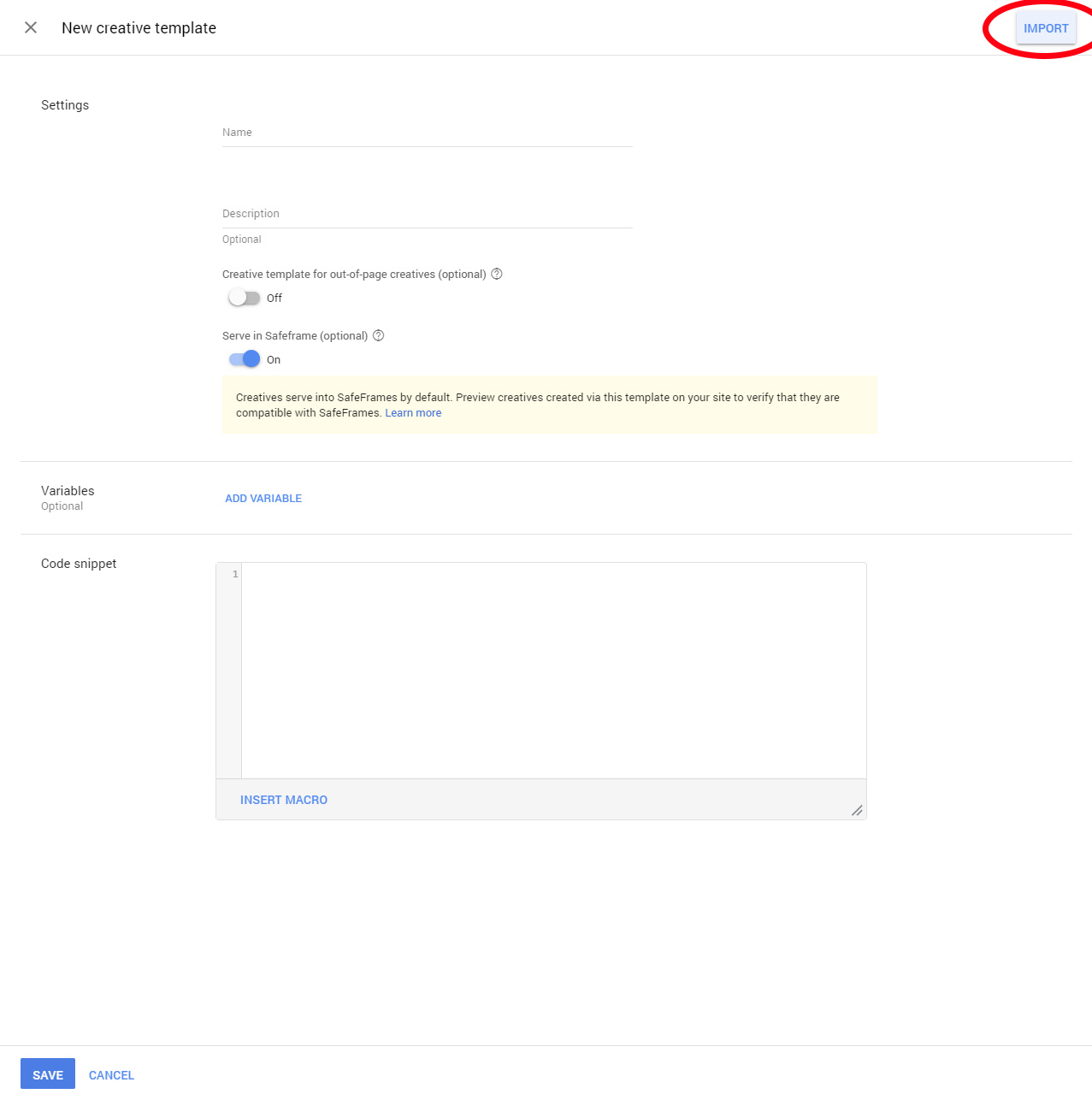
- Click the IMPORT button.

- Upload the creative template file (".dfp-template") downloaded in step 1, then click SUBMIT.


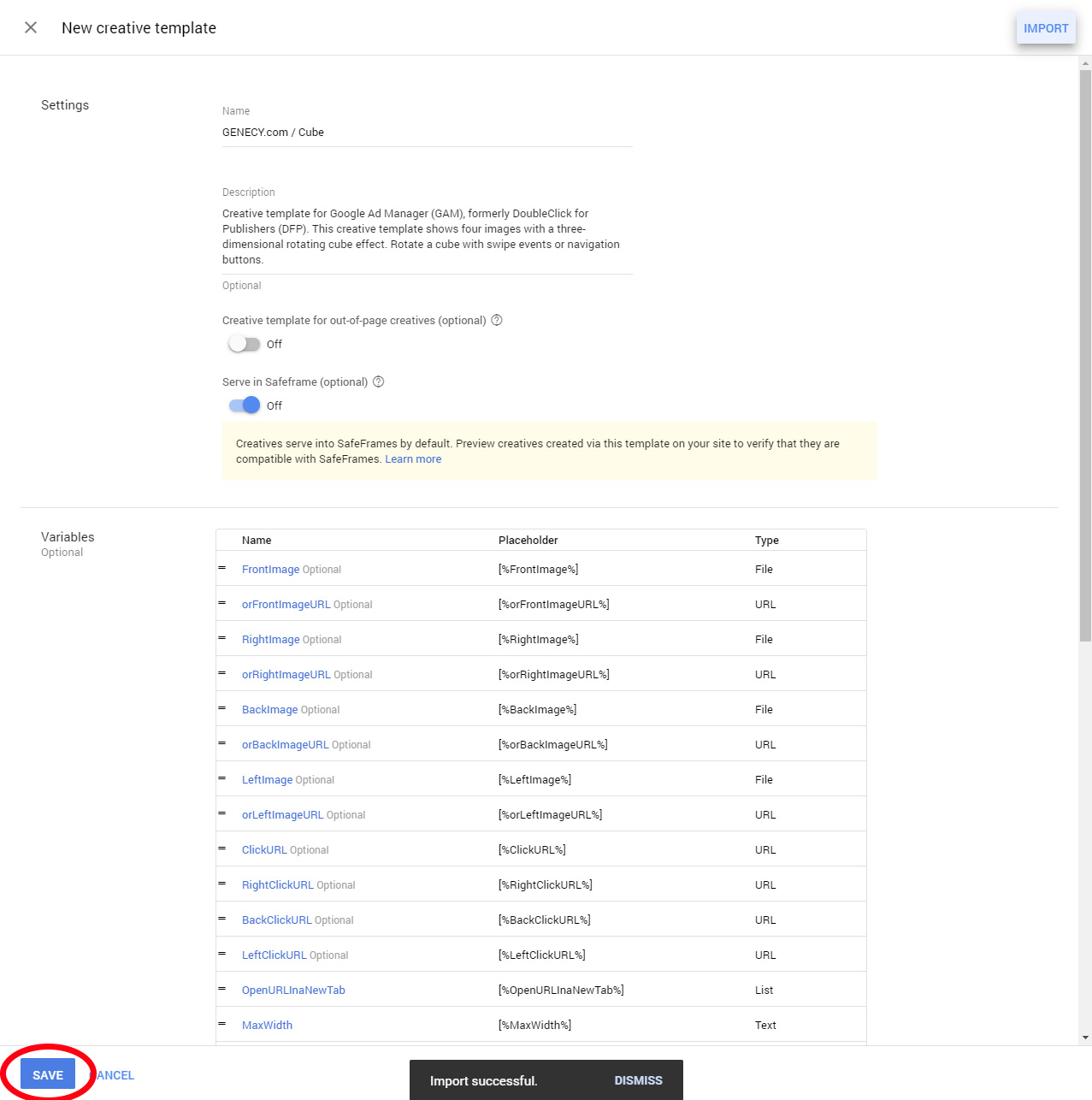
- An “Import successful” message will appear.
Do not make changes unless you fully understand what you are doing. Any modification may break the template. If you need to change default values, use the customization method or follow the instructions here.
- Click SAVE. A confirmation message and the list of templates will appear if the import was successful.




Method B: customize, download and install
- Choose the Customized option in the “Configuration” step on the template download page.
- Apply your desired customizations and download the customized template file.
- Follow the same installation steps described in Method A.