What are custom creative templates for Google Ad Manager?
In short: Custom creative templates in Google Ad Manager are reusable ad formats with predefined fields, so ad ops teams can traffic rich media campaigns without editing HTML, CSS, or JavaScript for every creative.
Custom creative templates in Google Ad Manager (GAM) are reusable templates that define how an ad looks, behaves, and serves. They can be used to create custom or rich media ad formats that are not available as standard creative types in Google Ad Manager.
Instead of adding and editing HTML, CSS, or JavaScript code for every campaign, a custom creative template provides a simple form with predefined fields. An ad operations user can upload images or HTML5 files, enter URLs, select options, and configure the creative without changing the template code.
How do custom creative templates work?
A custom creative template consists of two main parts:
- Template code - HTML, CSS, JavaScript, Google Ad Manager macros, and other code that controls the creative.
- Template fields (variables) - fields that users complete when creating a new creative, such as images, URLs, text, numbers, or configuration options.
For example, an interstitial template could contain all the JavaScript and CSS required to display and close the interstitial. When creating a campaign, the user only needs to upload the banner, enter the click-through URL, and configure the available options.
The same template can then be reused for different advertisers, campaigns, and line items.
Standard vs. custom creative templates
Google Ad Manager provides two types of creative templates:
Standard creative templates are included with Google Ad Manager and are designed for common advertising requirements.
Custom creative templates are created specifically for an Ad Manager network. They can include custom code and configuration fields to support advertising formats or functionality that standard templates do not provide.
For publishers running direct campaigns, custom templates can be particularly useful for creating reusable rich media formats such as interstitials, sticky banners, expandable ads, page takeovers, skins, or other custom advertising experiences.
Why use custom creative templates?
The main advantage is that the technical implementation is separated from everyday campaign trafficking.
Once a template has been installed and tested, an ad operations user can create new creatives from it without editing JavaScript or other source code. This makes it easier to:
- reuse the same ad format across multiple campaigns;
- create rich media creatives without coding each campaign from scratch;
- keep the implementation consistent between creatives;
- provide advertisers with additional direct-campaign formats;
- reduce the amount of technical work required for regular campaign setup.
Custom creative templates can also use Google Ad Manager macros, allowing values such as click-through URLs and other information to be inserted when the creative is served.
Where are custom creative templates located in Google Ad Manager?
Creative templates can be managed in:
Delivery → Creatives → Creative templates
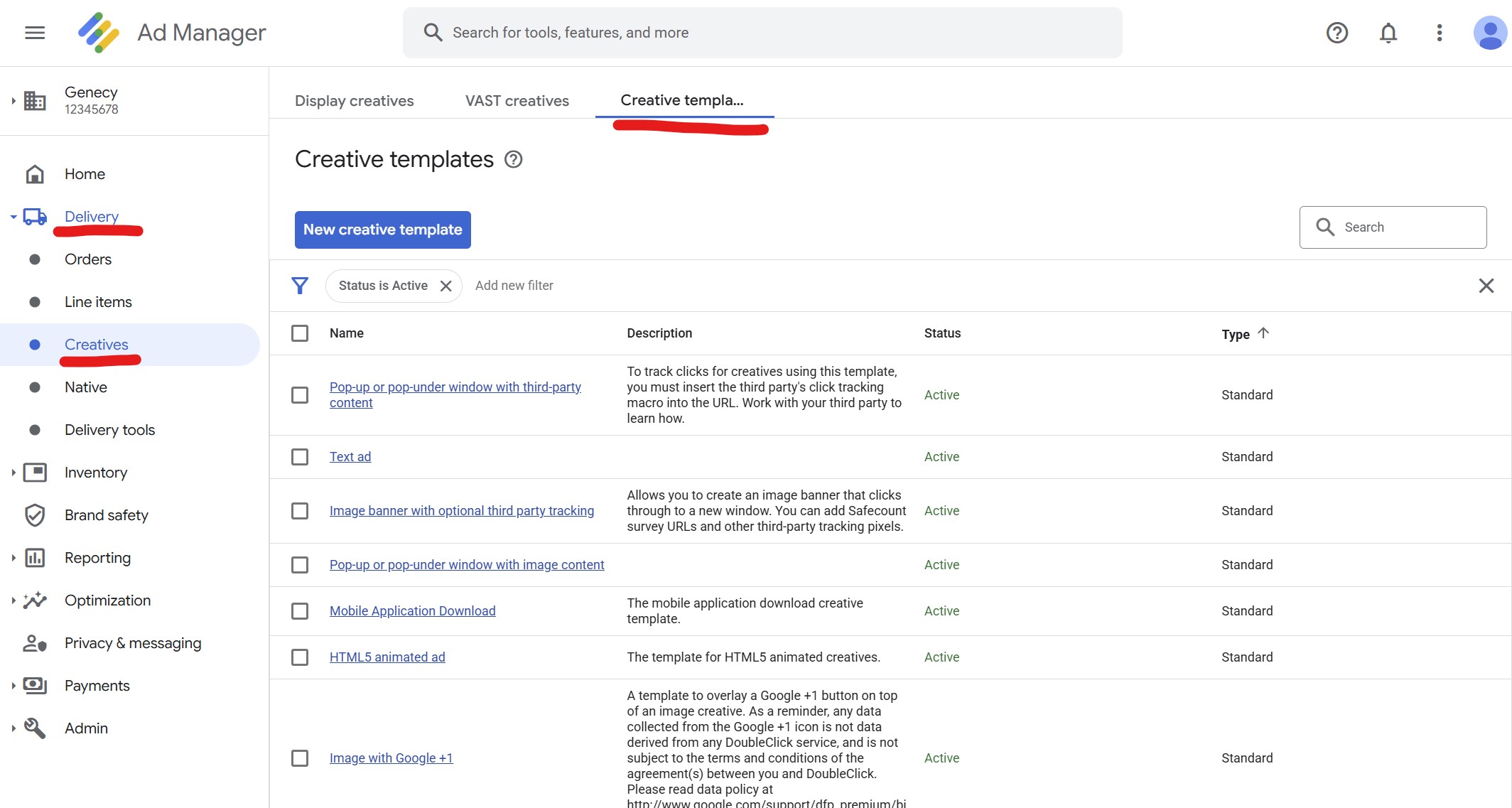
When creating a new creative for a line item, available custom creative templates appear as a creative type. After selecting a template, Google Ad Manager displays the fields defined by that template.
The user fills in the required fields, uploads the necessary assets, and saves the creative. The underlying template code uses these values when the ad is served.
Important: templates and creatives are different
A creative template is the reusable structure and code.
A creative is an individual ad created from that template for a particular advertiser or campaign.
For example, you may install an Interstitial creative template once and then use it to create dozens of different interstitial creatives with different banners, landing pages, and settings.
This makes custom creative templates especially useful for publishers and ad operations teams that regularly sell the same rich media formats to different advertisers.
Learn more
For Google's technical documentation, see Create and manage creative templates in the Google Ad Manager Help Center.
If you are using a Genecy custom creative template, continue with the next articles in this Knowledge Base to learn about template requirements, installation, configuration, and creating creatives from installed templates.