How to use a custom creative template?
- Create a new or open one of an existing line item;
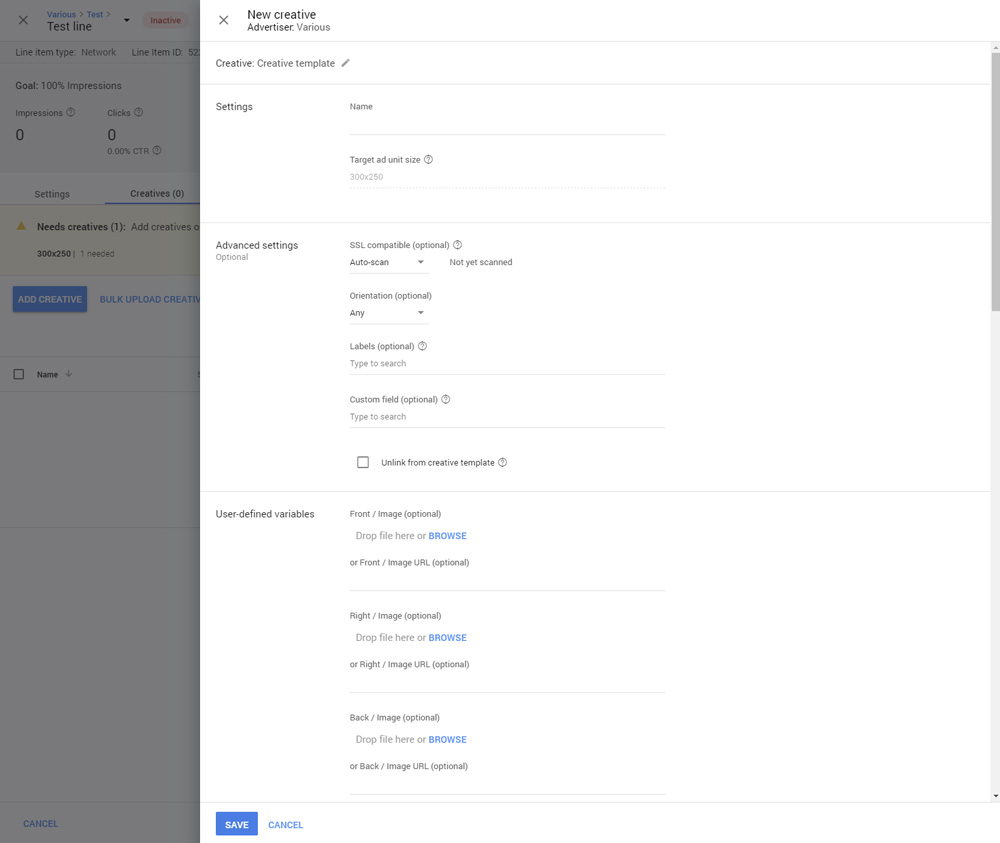
- Click the Creatives tab, then click on the button ADD CREATIVE;


- From the popup list select New creative > [a size from selected sizes in line-item settings];

- Search for and select a previously installed template in the "Custom creative template" block, then click on the button CONTINUE;


- Fill the form and click the button SAVE;


- A confirmation message will appear. A creative adding process is completed.


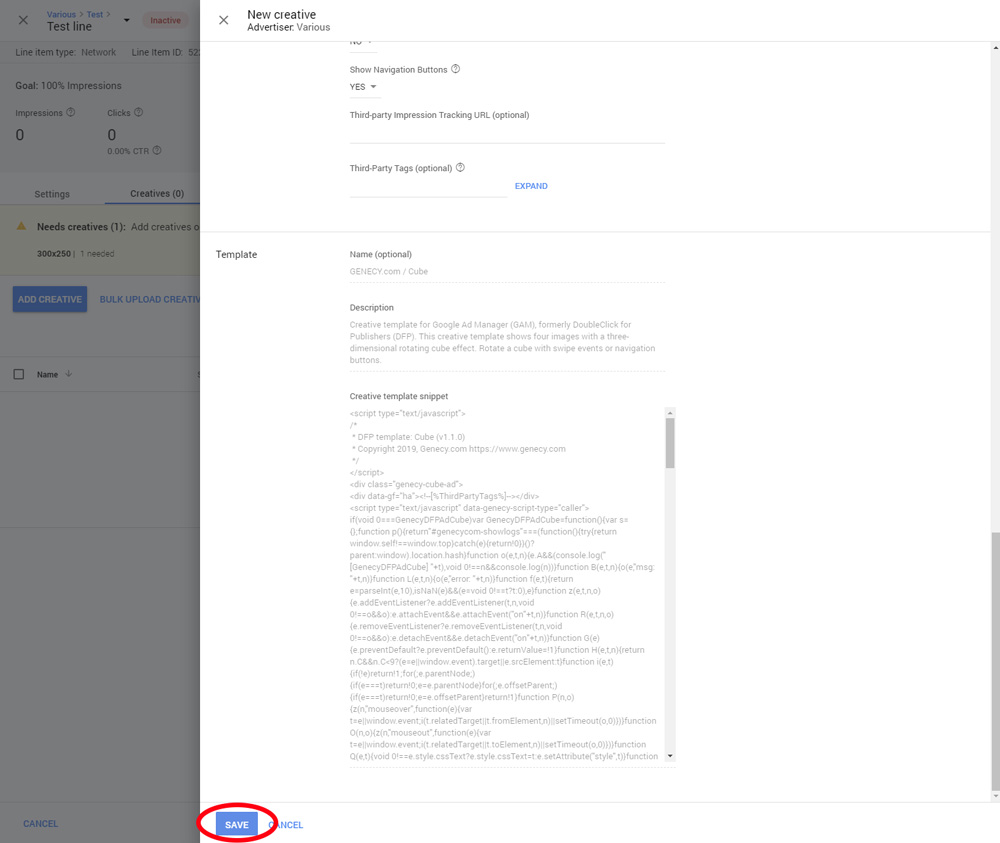
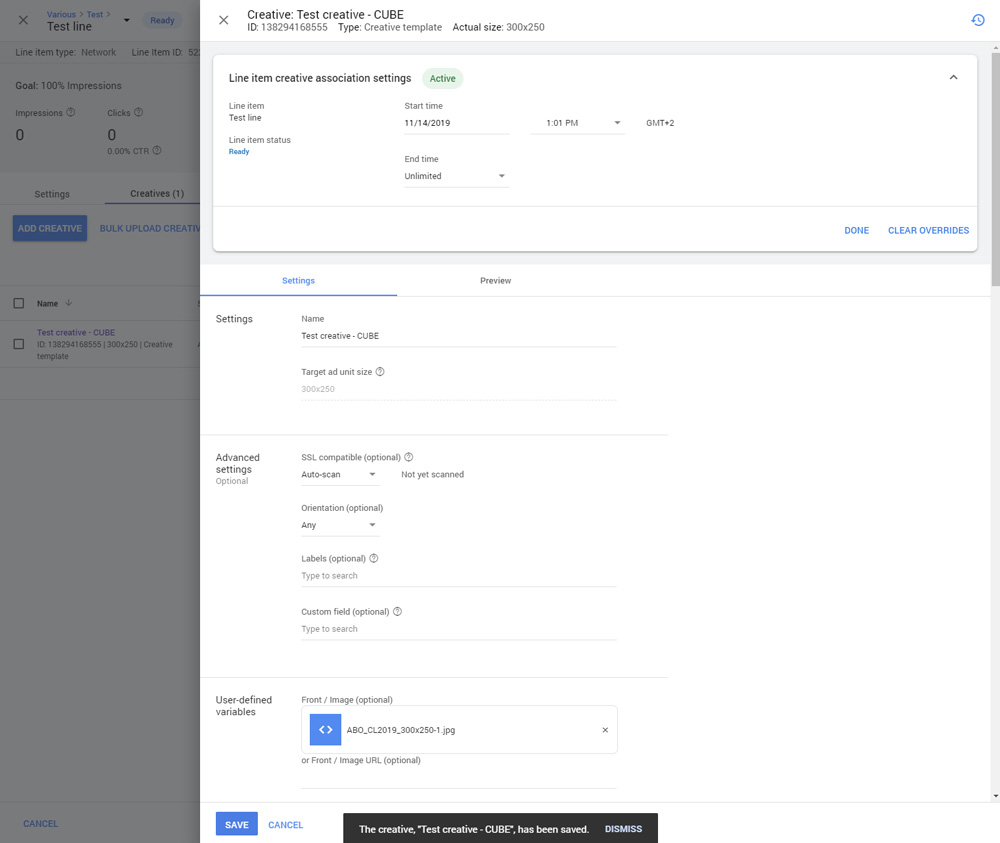
After that, you can check a creative on your website or check it on a new window.
Please note that creative may not appear in the "Preview" tab itself due to Google Ad Manager's technical limitations. Try to check creative on a new window or a site.
More about how to add creatives, you can read on Google Ad Manager's official pages.
Articles
- What is custom creative templates for Google Ad Manager?
- What are the requirements?
- How to download a purchased custom creative template?
- How to install or update a custom creative template?
- How to change default values for a custom creative template?
- How to use a custom creative template?
- How to change HTML5 ad contents depending on a state of the Expander?
- How to generate a creative (creative template) preview URL?
- How to use JS callback events with custom creative templates?
- Managing HTML and ZIP Files with Creative Templates
- Implementing impression tracking in custom creative templates
- Implementing 3rd-party viewability tags in custom creative templates
- How to use HTML banners with multiple clickTAGs